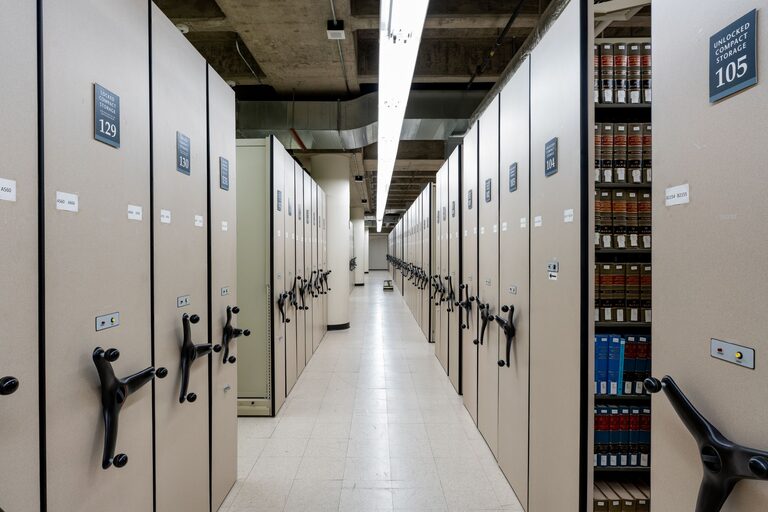

Organizing files on your computer is essential for maintaining efficiency, reducing clutter, and saving time searching for documents. Whether you use your computer for work, school, or personal projects, having a clear system for file storage can make a significant difference. In this post, we’ll explore practical tips to help you organize your computer files effectively.
Why Organizing Your Computer Files Matters
A well-organized file system helps you:
– Find files quickly without frustration
– Keep track of important documents
– Avoid accidental deletion or duplication
– Enhance overall productivity and focus
Taking a little time to set up a good system can save hours in the long run.
Step 1: Plan Your Folder Structure
Before moving or creating files, think about how you want to organize them.
Use a Hierarchical Folder System
Create broad main folders and then add subfolders to categorize files further. For example:
– Work
– Projects
– Reports
– Personal
– Finances
– Photos
– School
– Assignments
– Notes
This structure helps keep related files together and prevents clutter.
Keep It Simple
Avoid creating too many layers of folders. It’s best to strike a balance so your system is intuitive and easy to navigate.
Step 2: Name Files and Folders Clearly
Clear and consistent naming makes it easier to locate files.
Use Descriptive Names
Be specific about the content or purpose of the file. Instead of “Doc1,” name it “Budget_Report_March_2024.”
Avoid Special Characters
Use letters, numbers, hyphens, and underscores instead of characters such as / \ * ? % “ : | < > as some systems don’t support these.
Include Dates When Relevant
For files updated regularly, add dates in the format YYYY-MM-DD so they are sorted chronologically, e.g., “Meeting_Notes_2024-06-01.”
Step 3: Regularly Delete or Archive Unnecessary Files
Over time, your computer collects files you no longer need. Schedule routine cleanups to:
– Delete duplicates or outdated documents
– Move old files to an external hard drive or cloud storage
– Empty your recycle bin to free up space
Regular maintenance keeps your system running smoothly.
Step 4: Use File Management Tools
Your operating system offers tools to help manage files efficiently.
Use Search Features
Learn how to use built-in search with filters by date, file type, or keywords to find files quickly.
Create Shortcuts or Favorites
Pin frequently used folders or files to your desktop or quick access pane for faster retrieval.
Utilize Tags or Labels (If Available)
Some systems, like macOS or certain applications, allow tagging files with colors or keywords, making it easier to group and find them.
Step 5: Backup Important Files
Organizing files is also about protecting them.
– Use cloud services like Google Drive, Dropbox, or OneDrive for automatic backups
– Keep a second copy on an external hard drive or USB regularly
– Consider backup software for automatic scheduled backups
Having backups ensures your files stay safe in case of hardware failure or accidental deletion.
Step 6: Organize Downloads and Desktop Regularly
The Downloads folder and Desktop often become clutter hotspots.
– Create subfolders within Downloads for different file types (e.g., images, documents)
– Move important files off the Desktop into appropriate folders
– Set a weekly reminder to clean and organize these areas
This habit prevents buildup of random files that slow down your workflow.
Step 7: Use Cloud Storage for Collaboration and Access
Cloud storage services offer benefits beyond backup:
– Access your files from any device
– Share documents easily with others
– Collaborate in real-time on projects
Organize your cloud folders similarly to your local system to maintain consistency.
Bonus Tips for Optimal File Organization
– Avoid saving everything to the desktop. Reserve it for temporary files.
– Use consistent file extensions. Stick to formats you can open easily.
– Scan and organize physical documents. Digitize important papers and file them in your system.
– Set aside time weekly or monthly to review your folder structure and files. Keeping up with organization is easier than doing large cleanups.
Conclusion
Organizing your computer files doesn’t have to be complicated. With a clear folder structure, consistent naming, regular maintenance, and the use of backup tools, you can create a system tailored to your needs. This approach not only saves time but also reduces stress and improves productivity. Start small, stay consistent, and your digital workspace will become much more manageable.
Remember, the key to effective file organization is creating habits that you maintain over time. Happy organizing!